Pods
Pod's abbreviation is
po. (You can type po or pod or pods in your command.)A pod is a group of co-located containers (they run in one worker node).
Each pod can communicate to one another using the pod's IP.
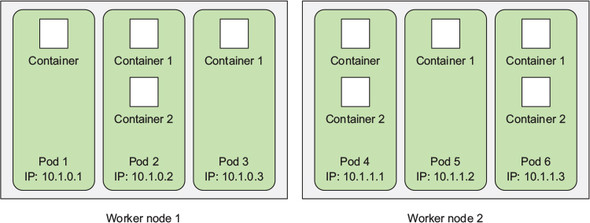
Sharing of Linux namespaces
The containers in a pod run in the same Linux namespace(s), i.e.,
- They share the same network and UTS namespaces — They share the same hostname and network interfaces (i.e., they share the same IP and port space). They can communicate to each other using the loopback network interface (localhost). Also, be careful not to have different processes bind to the same port.
- They share the same IPC namespace — They can communicate through IPC.
- BUT they don't share the same PID namespace by default — unless you enable this, each container will only see their own processes when you run
ps auxinside them
Pod descriptor
A sample pod descriptor looks like the following:
# uses the v1 version of the Kubernetes API
apiVersion: v1

# it's a pod
kind: Pod

metadata:
  # name of the pod
  name: kubia-manual
  # key-value pair for organization
  # otherwise your cluster will look like a mess
  label:
    appName: kubia-app
    version: 1.0.0]

spec:
  containers:
    - # the image used
      image: luksa/kubia
      # name of the pod
      name: kubia
      # use local image (don't pull from registry)
      imagePullPolicy: Never
      # for documentation only (listing ports are optional)
      ports:
        - containerPort: 8080
          protocol: TCP
Working with pods
Creating a new pod
Send the pod descriptor to the Kubernetes API server:
# If you create a descriptor named kubia-manual.yaml:
kubectl create -f kubia-manual.yaml
Stopping and deleting a pod
You can also use -l <selector> to filter by selectors:
kubectl delete po kubia-manual
Stopping and deleting all pods
Delete all pod in the current namespace as follows:
kubectl delete po --all
If you delete the namespace, all the pods running in there will also be deleted:
# kubectl delete namespace <namespace>
kubectl delete namespace custom-namespace
Get a shell to a pod's container
If the pod only has one container:
# kubectl exec <podName> -- <command>
kubectl exec kubia-7nog1 -- curl -s http://10.111.249.153
If the pod has multiple containers, select it using -c <containerName>:
# kubectl exec <podName> -c -- <command>
# The "-it" flag basically makes it interactive
# (*) --container, -c <containerName>: the container name to use
# (*) --stdin, -i: keep stdin open on the container in the pod
# (*) --tty, -t: allocate a TTY for the container in the pod
kubectl exec -it my-pod -c main-app -- /bin/bash
References
- Kubernetes in Action (Marko Lukša) — Chapter 2. First steps with Docker and Kubernetes
- Kubernetes in Action (Marko Lukša) — Chapter 3. Pods: running containers in Kubernetes
- Get a Shell to a Running Container — https://kubernetes.io/docs/tasks/debug/debug-application/get-shell-running-container/
- Kubectl Reference Docs — exec — https://kubernetes.io/docs/reference/generated/kubectl/kubectl-commands#exec